
File System Access And Persistent Storage For Web Apps
The modern web, tested and explained in plain English

Modern Web Weekly #73
The File System Access API brings access to the native file system to web apps. The API is currently only supported in Chromium-based browsers on desktop, but the Origin Private File System is now supported across all browsers on desktop, Android, and iOS.
The Origin Private File System (OPFS) is a high-performance virtual file system that’s accessible only to the origin the web app (PWA) runs on. You can work with it like any file system, which means that you can create and delete directories and files, and also edit files. It uses the same interfaces that the File System Access API uses, like FileSystemDirectoryHandle and FileSystemFileHandle. These are the interfaces that give access to a directory and fil,e respectively.
OPFS is a virtual file system, which means that the directories and files that are created do not correspond to actual directories and files on the user's device. They can be saved inside a database or a single file; this is up to the browser to implement.
An implication of this is that the user doesn’t have to give permission repeatedly to the web app to get access to the directories and files, as is the case with the File System Access API, which does have access to the actual file system of the user's device.
Just like IndexedDB, localStorage, and sessionStorage, the OPFS is subject to storage quota restrictions. This means that there is a maximum to the amount of data that can be stored (although this will usually be enough for most use-cases) and that the OPFS will be cleared when the user clears all browsing data.
Your web app gets access to OPFS through the StorageManager, which is located in the navigator.storage property. StorageManager is also responsible for managing storage permissions and estimating available storage through its persist() and estimate() methods.
Access to OPFS is obtained through the getDirectory() method:
const opfsRoot = await navigator.storage.getDirectory();The returned object opfsRoot is a FileSystemDirectoryHandle. In the root, you can create a directory with the getDirectoryHandle() method:
const directoryHandle = await opfsRoot
    .getDirectoryHandle('test_dir', {create: true});
getDirectoryHandle() is used to get a reference to a directory inside OPFS, but by passing {create: true} as the second argument, the directory is created. If the directory already exists, an error is thrown.
To create a file, use the getFileHandle() method:
const fileHandle = await opfsRoot.getfileHandle('test.txt', {create: true});Just like getDirectoryHandle(), getFileHandle() gets a reference to a file or creates it when {create: true} is passed as the second argument. The above example creates a file inside the OPFS root. To create a file inside a specific folder, you need to call getFileHandle() on the FileSystemDirectoryHandle that references the directory you want to create it in:
// create a directory in OPFS
const directoryHandle = await opfsRoot
    .getDirectoryHandle('test_dir', {create: true});

// create a file in the directory that was just created
// "getFileHandle()" is called on "directoryHandle"
const fileHandle = await directoryHandle
    .getfileHandle('test.txt', {create: true});
If you need to get a handle to an existing file, simply leave out {create: true}. To get the actual file the handle points to, use the getFile() method:
// handle to existing file
const fileHandle = await directoryHandle.getfileHandle('test.txt');

// the actual File object
const file = await fileHandle.getFile();

// get the contents of the file as text
const contents = await.file.text();
To save data to the file, call the createWritable() method of the file handle, which returns a FileSystemWritableFileStream:
const contents = 'This is a test file';
const writable = await fileHandle.createWritable();

// write the contents of the file to the stream.
await writable.write(contents);

// close the stream, the contents are now persisted to the file
await writable.close();
For older browsers that don’t support the FileSystemWritableFileStream, we need to use the synchronous file handle called FileSystemSyncAccessHandle, which has a synchronous write() method. But these synchronous methods are only available inside Web Workers. The reason for this is that synchronous methods can block the main thread, and Web Workers can’t, so synchronous methods are only allowed inside Web Workers.
To get a FileSystemSyncAccessHandle, call the createSyncAccessHandle on the file handle:
const fileHandle = await directoryHandle.getfileHandle('test.txt');

// get synchronous file handle
const syncAccessHandle = await fileHandle.createSyncAccessHandle();
Here’s how you would then save contents to the file:
const syncAccessHandle = await fileHandle.createSyncAccessHandle();
const encoder = new TextEncoder();
const writeBuffer = encoder.encode(contents);
const writeSize = syncAccessHandle.write(writeBuffer, { "at" : 0 });

// truncate the file to the size of the data, otherwise if the new data
// is smaller than any old data, parts of the old data will
// stay in the file
syncAccessHandle.truncate(writeSize);

// save changes to disk
syncAccessHandle.flush();

// close FileSystemSyncAccessHandle when done
syncAccessHandle.close();
From this example, you can see that to save data to a file synchronously, we always need to have the file handle that points to the file we want to save data to. Since this needs to be done inside a Web Worker, the file handle needs to be sent to the Worker using the postMessage() method. When this file handle is sent, it needs to be serialized, but an additional issue is that some older browsers don’t support serializing FileSystemFileHandle.
A possible workaround for this is to not send the actual file handle to the Web Worker, but the path to the file we want to save data to. We can do this by calling the resolve() method of FileSystemDirectoryHandle.
For example, if a file inside OPFS is located at test_dir/nested_dir/text.txt, calling resolve() on the root directory with the file handle as its argument will return an array with all directory names in the path and the file name:
// "handle" is the file handle of the file located at
// test_dir/nested_dir/test.txt
const path = opfsRoot.resolve(handle);

console.log(path); // ['test_dir', 'nested_dir', 'test.txt']
You can then use this array to first get the handle to test_dir from the OPFS root, then use that directory handle to get the handle to nested_dir and then use that handle to get the file handle to test.txt.
Inside the Web Worker, you would then use something like this to save the data to the file:
self.addEventListener('message', async ({data}) => {
  // get the path to the file and the contents to save to it
  const {path, contents} = data;

  // get the OPFS root directory
  const root = await navigator.storage.getDirectory();

  // get the file name (last element in the "path" array)
  const fileName = path.pop();

  let nestedDir = root;

  // recursively get the handle to the directory the file is in
  for(const dirPath of path) {
    nestedDir = await nestedDir.getDirectoryHandle(dirPath);
  }

  // get the handle to the file we want to save to
  const file = await nestedDir.getFileHandle(fileName);

  // get the sync file handle
  const syncAccessHandle = await file.createSyncAccessHandle();
  const encoder = new TextEncoder();
  const writeBuffer = encoder.encode(contents);
  const writeSize = accessHandle.write(writeBuffer, { "at" : 0 });

  // truncate the file to the size of the data, otherwise if the new data
  // is smaller than any old data, parts of the old data will
  // stay in the file
  syncAccessHandle.truncate(writeSize);

  // save changes to disk
  syncAccessHandle.flush();

  // close FileSystemSyncAccessHandle when done
  syncAccessHandle.close();
});
Both directories and files can be removed with the remove() method of the directory or file handle. To remove a folder and all its subfolders pass {recursive: true}:
The remove() method is currently implemented in Chrome. In Safari, you have to use removeEntry with the name of the directory or file.
directoryHandle.removeEntry('test.txt');Check What PWA Can Do Today for a demo of both the File System Access API and the Origin Private File System.
Persistent storage for PWAs
In addition to OPFS, web apps can store data in the user’s browser in various ways. You’re probably familiar with cookies that can store simple data, but web apps can also use IndexedDB and Cache Storage to store larger, structured data. These two mechanisms are part of the Storage API. In addition to these, there are also localStorage and sessionStorage that are part of the Web Storage API.
The problem is that the browser may delete this data when a user hasn’t used the app for a certain time. This is especially important when the user’s device runs low on disk space. In that case, data from web apps that the user hasn’t used for the longest time will be removed first.
Safari is the only browser that proactively removes data when Intelligent Tracking Prevention (ITP) is turned on. When a web app hasn’t been interacted with for seven days, the data it saved will be removed; however, installed PWAs are excluded from this.
Web apps can now also request persistent storage in all browsers. This means that the data saved by the app will not be removed unless the data is manually removed by the user or when the device runs low on disk space. When disk space runs low, the browser will notify the user and offer to delete specific data.
How to request persistent storage
In supporting browsers, web apps can request persistent storage through navigator.storage.persist(). This returns a Promise that resolves to true or false. Permission is granted by the browser based on how much the user has interacted with the app and if the app is installed as a PWA.
To check if an app already has persistent storage, use await navigator.storage.persisted() which returns a Promise that resolves to true or false.
If persistent storage is not granted, try interacting with the app more or install it as a PWA. Browsers don’t show any dialogs to ask for permission, so you could consider requesting persistent storage regularly.
How much storage does my web app use?
The available and used storage space can be obtained through navigator.storage.estimate() which returns a Promise that resolves to the quota and usageproperties that return the available and used storage space, respectively, in bytes.
In Chrome and Edge, an additional property usageDetails is returned that specifies the used space by storage type, which may vary per browser.
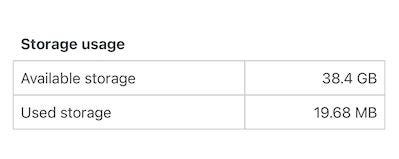
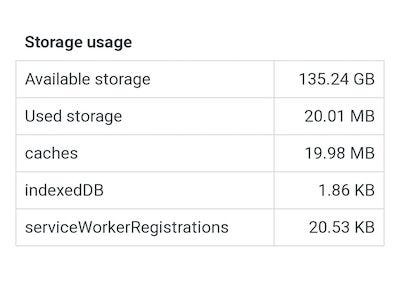
Here’s a live demo on What PWA Can Do Today.
Do you need help with your web app?
Book a 1-on-1 call with me, and I will do my absolute best to answer all your questions and solve your problems.
€100 for one hour, money-back guarantee if you’re not satisfied.